Quick start
The shortest path from a freshly installed extension to a store charging correct tax. Allow about twenty minutes, plus a test order.
You will need your TaxCloud credentials and your origin address — see Before you begin if you do not have them yet.
1. Set your origin address
Stores → Configuration → Sales → Shipping Settings → Origin
Enter the address you ship from, in full, including the ZIP+4.
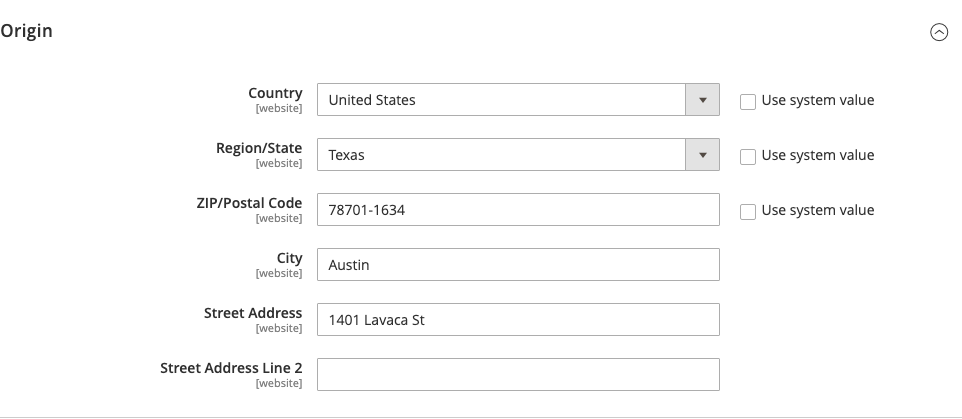
This is where many setups go wrong. A five-digit ZIP can span more than one tax jurisdiction, and a missing or malformed one stops the tax lookup happening at all. Look yours up with the USPS ZIP Code lookup if you are not sure.
Save the configuration.
2. Enter your credentials
Stores → Configuration → Sales → Tax → TaxCloud Settings
Leave Enabled set to Disable for now — you want credentials confirmed
before anything reaches your storefront.
Set API Type, then fill in the fields it reveals:
- V3 REST — paste your Connection ID. Leave API Key blank unless you generated one under Developer → API in TaxCloud.
- V1 SOAP (legacy) — enter your API ID and API Key.
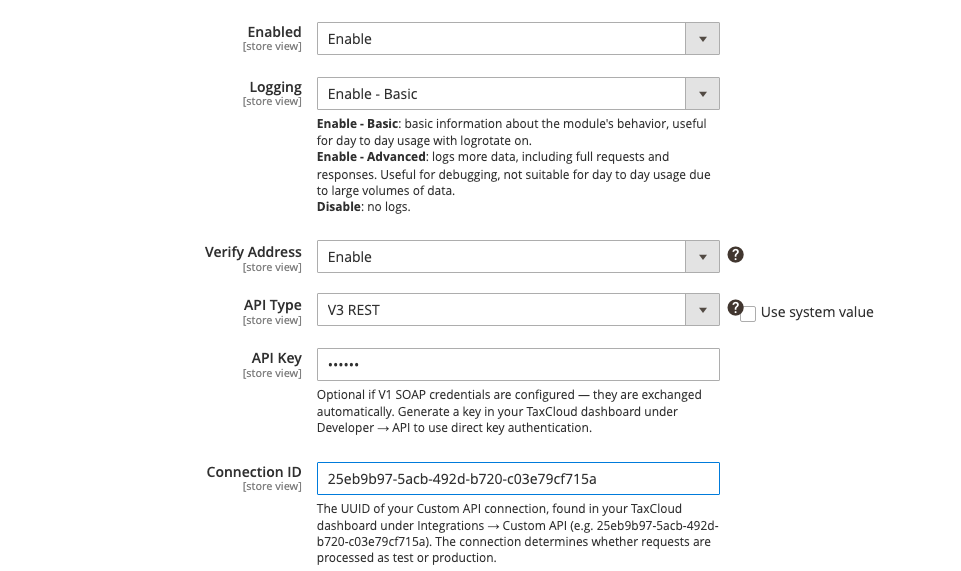
Save the configuration.
3. Check the credentials work
Click Test Connection, on the Verify Credentials row.

A green confirmation means TaxCloud accepted them and you can carry on. Anything else, fix it now — the rest of the setup will not work until this passes:
| What you see | What it means |
|---|---|
| TaxCloud rejected the credentials | The values are wrong. Re-copy them from your dashboard. |
| TaxCloud does not recognise the Connection ID | Right format, wrong connection — check Integrations → Custom API. |
| Could not reach TaxCloud | Not a credentials problem. Your server cannot get out to TaxCloud; ask your host about outbound HTTPS. |
4. Set your tax codes
Still in TaxCloud Settings:
Default TIC — what most of your catalogue is. Leave it at 00000 (general
goods and services) if you sell ordinary taxable items; change it if your
catalogue is mostly one special category, such as clothing or groceries. Start
typing what you sell and pick from the suggestions.
Shipping TIC — 11010 if you pass through postage only, 11000 if your
shipping charge includes handling.
A TIC tells TaxCloud what kind of thing you are selling, which is what decides how each state taxes it. These two are the fallbacks; individual products can override them, which is step 7.
5. Turn it on
Set Enabled to Enable and save.
Your storefront is now calculating tax through TaxCloud.
Try it on one store view first
Every setting can be set per store view. If you run several stores, switch the Store View selector to one of them, enable TaxCloud there, and leave the others as they were until you are happy. See Multi-store setups.
6. Place a test order
Add something to the cart, check out to a real US address, and confirm the tax looks right. Then complete the order and check it appears in your TaxCloud dashboard with the right amount.
Full walkthrough, including refunds: Testing your setup.
Tax does not appear on the cart page at first
Until a shopper has entered a shipping address, there is nothing to calculate tax from. Tax appears once they reach checkout and give an address.
7. Set TICs on your products
The Default TIC covers everything you have not been specific about. Anything taxed differently — clothing, food, digital goods, prescription items — needs its own code.
You do not have to do this product by product. A TIC set on a category applies to everything in it, and the product grid lets you set many at once. See Assigning TICs.
This is the step that decides whether your tax is right
Everything up to here just connects the plumbing. The TIC is what tells TaxCloud what you are selling. A store where every product is treated as general goods will over-collect on exempt items and under-collect on some special ones.
8. Before you go live
- Origin address entered with ZIP+4
- Credentials verified
- Default TIC and Shipping TIC set
- TICs assigned to products and categories that need them
- A test order placed and checked against the TaxCloud dashboard
- A test refund checked against the TaxCloud dashboard
- Your TaxCloud connection switched from test to production, if you were using a test one
- Decided when orders should be reported — Capture in TaxCloud
- Decided what happens if TaxCloud is unreachable — Fallback to Magento Tax Rates
What next
- Sell to tax-exempt customers → Turning exemptions on
- Want the detail on any setting → Settings reference
- Something is not right → Common problems