Managing certificates in the admin
Once exemptions are enabled, every customer edit page gains a TaxCloud Exemption Certificates tab. Everything you need to do with a customer's certificates happens there — no copying identifiers out of the TaxCloud portal by hand.
Customers → All Customers → edit a customer → TaxCloud Exemption Certificates
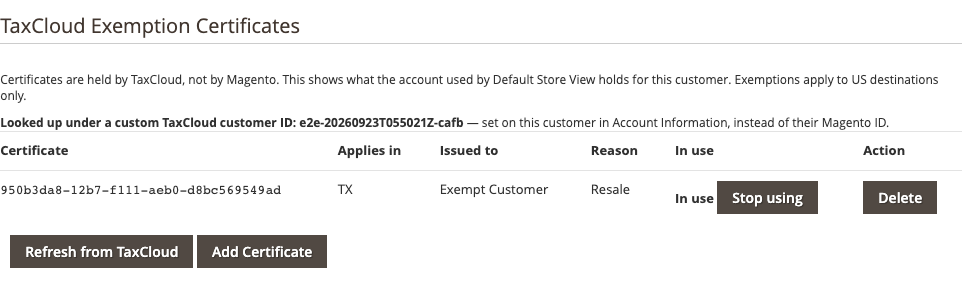
If you cannot see the tab, either exemptions are off or your admin role does not have the permission — see Turning exemptions on.
What the panel shows
Every certificate filed under this customer's TaxCloud identity:
| Column | What it tells you |
|---|---|
| Certificate | The certificate's identifier in TaxCloud |
| Applies in | The states it covers |
| Issued to | The purchaser named on it |
| Reason | Why the exemption is claimed — resale, government, education, and so on |
| In use | Whether this is the certificate attached to the customer, with the button to attach or detach it |
The panel also shows which TaxCloud identity the customer resolves to, which is worth a glance when something is not behaving: a certificate filed under a different identity is invisible to this customer at checkout.
Attaching a certificate
Listing a certificate does not exempt anything. Attaching it does — the attached certificate is the one applied at checkout.
Click Use for this customer in the certificate's row. The In use column then marks it, with a Stop using button to detach it again. A customer has one attached certificate at a time; attaching another replaces it.
A certificate that TaxCloud has disabled shows disabled instead of a button — it could never exempt anything, so it is not offered.
Creating a certificate
Click Add Certificate.
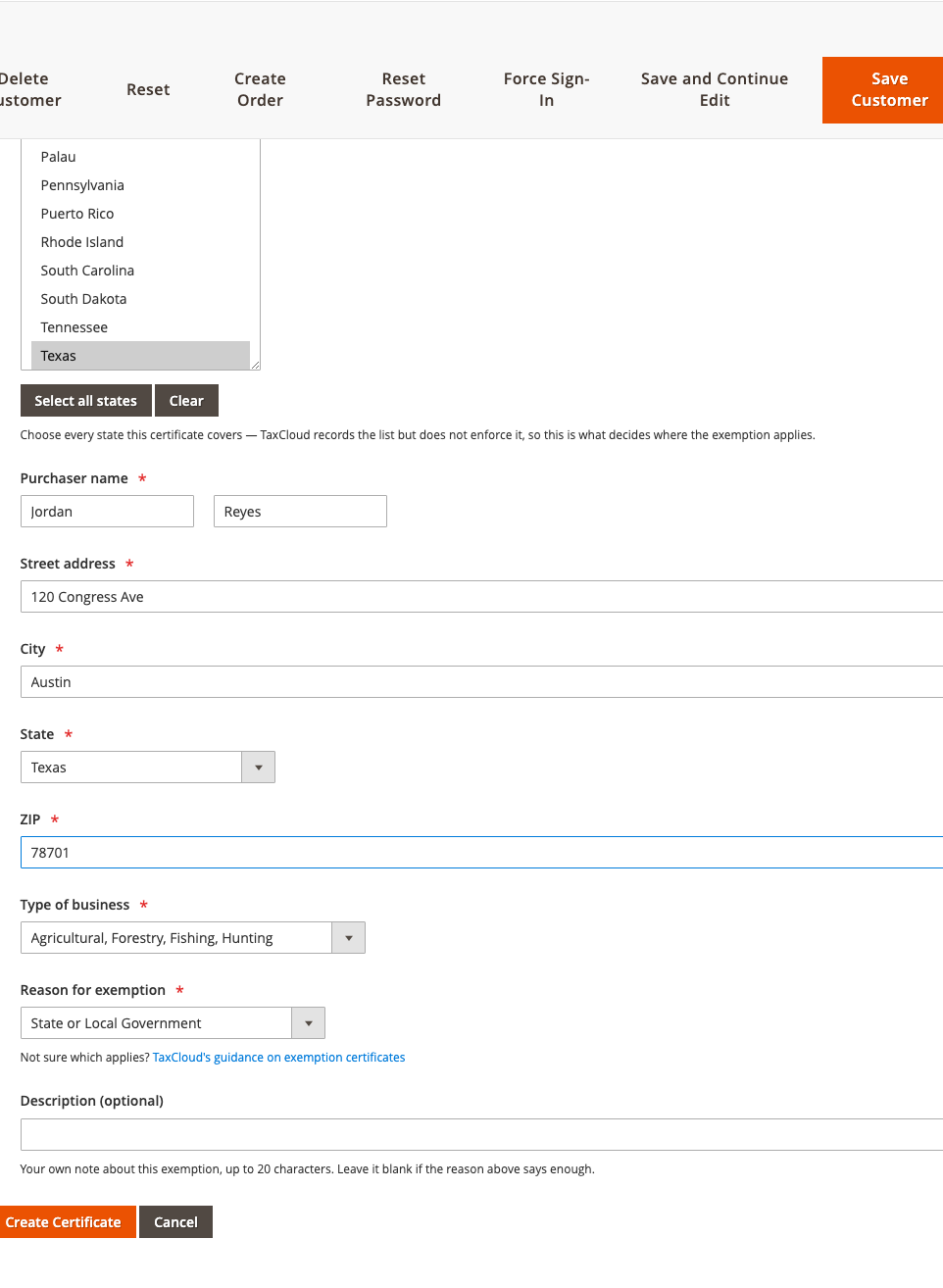
| Field | What to enter |
|---|---|
| Applies in | The states the certificate covers. There are buttons to select all states or clear the selection. |
| Purchaser name | The person named on the signed certificate |
| Street address, City, State, ZIP | The purchaser's address |
| Type of business | What kind of organisation they are |
| Reason for exemption | Why they are exempt — resale, government, charitable, educational, and so on |
| Description | Optional free text, for a reason that needs explaining |
The form links out to TaxCloud's own guidance if you are unsure which reason applies.
Enter what the signed certificate says
This form records a claim; it does not check one. The details should match the certificate the customer actually signed and that you are holding. If you do not have that document, get it before you create the record.
Creating a certificate files it with TaxCloud and lists it here. If the customer has no certificate in use, the new one is put in use straight away; otherwise the one in use stays, and you attach the new one when you want it to take over.
Refreshing from TaxCloud
Refresh from TaxCloud re-reads the customer's certificates.
Certificates are cached for an hour, so a certificate created or revoked directly in the TaxCloud dashboard may not show here immediately. Changes made through this panel appear straight away. Use Refresh when you have changed something on the TaxCloud side and do not want to wait.
Deleting a certificate
Click Delete in the certificate's row. Deleting the certificate in use also stops it applying, so the customer is taxed from their next order until another certificate is in use — the confirmation says so before anything happens.
Deletion is permanent
TaxCloud cannot restore a deleted certificate. If it was used on past orders, those orders keep their own record of what it said at the time — but the certificate itself is gone. Choose Stop using rather than delete if you only want to stop it being applied.
Changes made by customers
If you have let a customer's group manage certificates, the customer may have added certificates or changed which one is in use from My Account. They show here like any other. To see who made a change, look in the TaxCloud log: administrators' changes carry their admin username, and customers' changes read "customer ID (My Account)".
The TaxCloud Customer ID
Each customer has a TaxCloud Customer ID — the identity their certificates are filed under. It defaults to their Magento customer ID and normally needs no attention.
Change it in one situation: several people buying under one organisation's exemption. Point them all at the same TaxCloud Customer ID and they share that organisation's certificates.
Shared certificates can be removed by anyone sharing them
Every customer on a shared TaxCloud Customer ID can remove the shared certificates from My Account, which stops them applying for all of them. Each customer still has their own certificate in use, so one customer switching theirs does not affect the others.
Changing it changes which certificates a customer can use
Point a customer at a different identity and their existing certificates stop resolving — they will be taxed. Changes are recorded in the TaxCloud log, so you can see who changed what.
Next: How an order becomes exempt.